
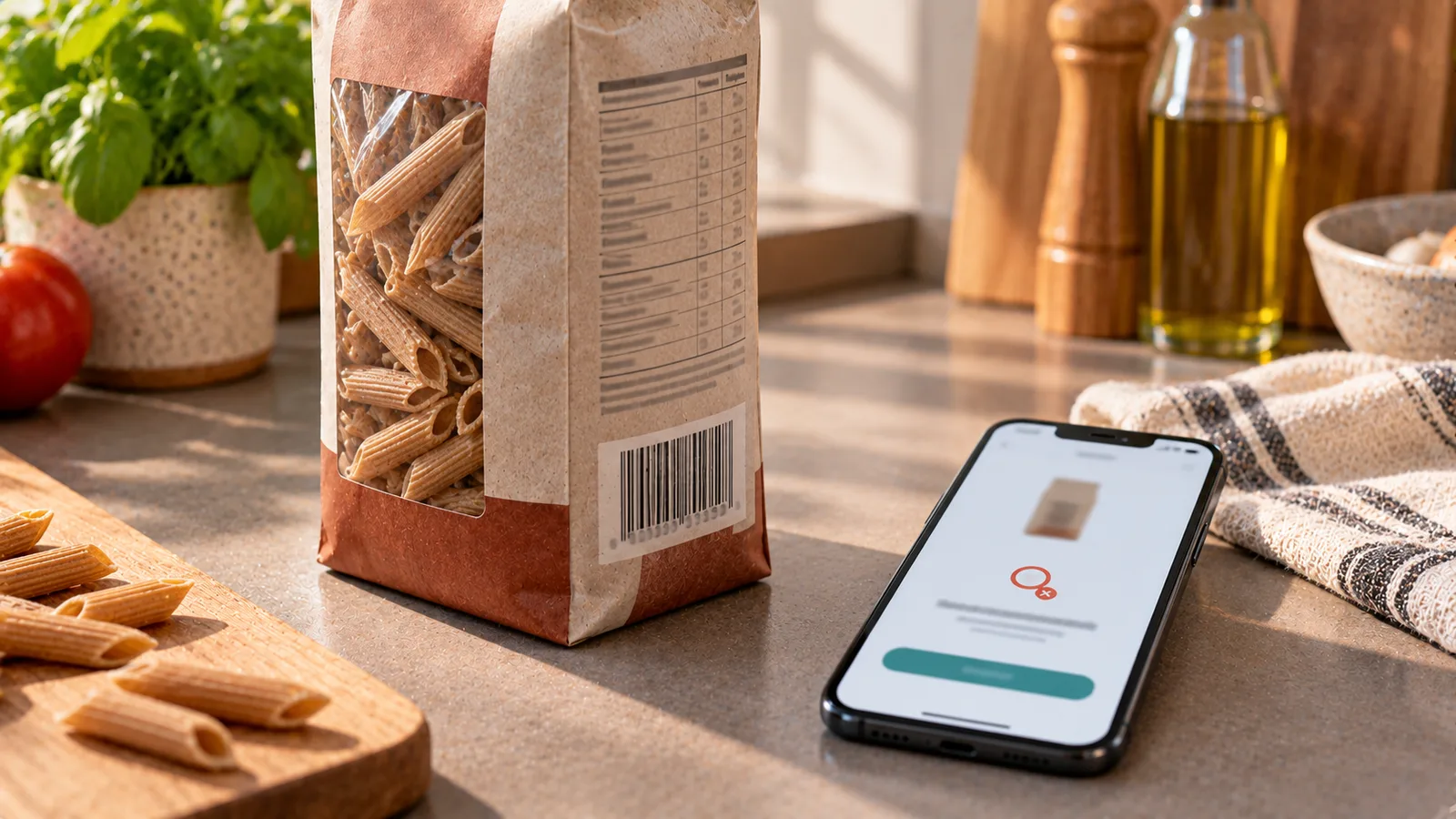
Scanning a barcode can make food tracking much faster. But sometimes the scanner works perfectly and the app still returns no product.
That does not necessarily mean anything is wrong with the barcode or your phone.
Usually it means the barcode is not linked to a usable product record in the app's current food database.
The most reliable solution is not to choose a vaguely similar product. It is to use the package itself as the primary source and create or select an entry that matches what you actually ate.
First determine whether the barcode was scanned correctly
There is an important difference between:
- the camera being unable to read the barcode; and
- the barcode being read successfully but returning no food.
If the camera cannot read it, try:
- cleaning the camera lens;
- improving the lighting;
- holding the package steady;
- flattening a curved wrapper;
- moving slightly farther from or closer to the barcode;
- making sure the entire barcode is visible.
If the app displays the barcode number but says the product cannot be found, scanning is probably not the main problem. The database simply may not contain a matching record.
Why a valid barcode may be missing
A barcode identifies a commercial item, but nutrition apps do not automatically have access to every product sold worldwide.
Several situations can produce a missing result.
The product is new
A manufacturer may launch a product before it appears in the database used by the app.
The product is regional
A food sold in Germany, France or another specific market may be absent from a database built mainly from products in another country.
The package has changed
Manufacturers can change:
- package size;
- recipe;
- branding;
- nutrition information;
- barcode.
An older version may exist while the current one does not.
It is a retailer-specific product
Private-label and store-brand foods can have many regional variants.
A similar-looking product from the same retailer is not necessarily the same food.
The database depends partly on user submissions
Some food databases contain records contributed by users or external partners.
Coverage can therefore vary considerably between categories and countries.
The barcode exists, but the record is unusable
An app may have an associated record that is incomplete, outdated or missing required nutrition fields.
In that situation, treating the product as unknown can be safer than silently using poor data.
Do not choose the first similar result
Suppose you scan a 400 g supermarket lasagne and no exact match appears.
Searching for "lasagne" might return dozens of alternatives.
Their calorie values can differ because of:
- meat content;
- cheese quantity;
- sauce;
- pasta-to-filling ratio;
- fat content;
- recipe formulation.
A visually similar product is not necessarily nutritionally interchangeable.
When the exact packaged product is available in front of you, its own label is usually a better source than an unrelated database entry.
Use the nutrition label
For a missing packaged food, collect the information printed on the package.
Useful fields include:
- product name;
- brand;
- barcode number;
- package size;
- serving size, if given;
- calories or energy;
- fat;
- saturated fat;
- carbohydrate;
- sugars;
- protein;
- salt or sodium;
- fiber, when listed.
You may not need every field for basic calorie tracking, but recording the full available nutrition panel creates a more useful food entry.
Prefer values per 100 g or 100 ml when available
In the European Union, nutrition declarations for most prepacked foods are generally expressed per 100 g or 100 ml.
This provides a useful standard basis for tracking.
For example, suppose a soup label says:
| Per 100 g | Amount |
|---|---|
| Energy | 72 kcal |
| Fat | 2.8 g |
| Carbohydrate | 8.1 g |
| Protein | 3.2 g |
| Fiber | 1.4 g |
If you eat 350 g, the multiplier is:
350 ÷ 100 = 3.5
The estimated calories are:
72 × 3.5 = 252 kcal.
Protein would be:
3.2 × 3.5 = 11.2 g.
The same method can be used for the other nutrients.
Example: adding a missing yogurt
Imagine a 500 g tub of yogurt is not recognized.
The label gives, per 100 g:
- 64 kcal;
- 1.8 g fat;
- 5.2 g carbohydrate;
- 6.0 g protein.
You eat 180 g.
The amount multiplier is:
180 ÷ 100 = 1.8.
Your logged serving would therefore be approximately:
- 115 kcal;
- 3.2 g fat;
- 9.4 g carbohydrate;
- 10.8 g protein.
The database does not need to know the product beforehand if the app allows you to create an entry from reliable package data.
Package size is not serving size
A common mistake is entering the entire package as one serving and then logging "1 serving" when only part was eaten.
For example:
- package size: 750 g;
- amount eaten: 250 g.
The amount consumed is one-third of the package, not one full package.
When possible, save nutrition values per 100 g and enter the actual grams eaten.
This makes later portions easier to calculate.
Check whether the label describes prepared or unprepared food
Some products require preparation.
Examples include:
- powdered soup;
- cake mix;
- instant drinks;
- dry pasta meals;
- dehydrated products.
A package may provide nutrition for:
- the product as sold;
- the prepared product;
- or both.
Do not automatically enter prepared values as if they described the dry product.
Read the wording around the nutrition table and match the database entry to the state in which you are measuring or logging the food.
Check drained weight when relevant
Products packed in liquid can require additional attention.
Examples include:
- beans;
- tuna;
- vegetables in brine;
- fruit in liquid.
The package may show both net weight and drained weight.
If you discard the packing liquid and eat only the drained food, make sure the nutrition basis and the amount you log refer to compatible states.
Do not assume that total package weight equals edible drained weight.
EU and U.S. labels are not identical
When entering products manually, keep the labeling system in mind.
European and U.S. nutrition labels differ in layout and in some conventions for reporting nutrients.
For example, fiber is handled differently in relation to the displayed carbohydrate value.
The safest method is to copy each explicitly stated nutrient into the corresponding field rather than trying to reconstruct one labeling system from another.
What if only calories matter to you?
You can create a minimal entry containing:
- product name;
- amount basis;
- calories.
But this has limitations.
If you later want to track:
- protein;
- carbohydrates;
- fat;
- fiber;
the entry will be incomplete.
When the full nutrition label is available, entering the major nutrients at the beginning usually prevents additional work later.
Check the units carefully
Many incorrect user-created foods come from unit mistakes rather than incorrect label values.
Common errors include:
- entering kilojoules as kilocalories;
- copying per-serving values into a per-100-g field;
- entering milligrams as grams;
- using 100 ml values for 100 g without justification;
- entering the package weight as the serving size.
For energy, European labels commonly display both kilojoules and kilocalories.
If the app asks for kcal, enter the kcal value—not the kJ value.
Example of a serious unit error
Suppose a label shows:
1,050 kJ / 250 kcal per 100 g.
Entering 1,050 into a kcal field would make the food appear to contain more than four times its actual stated calorie value.
This is why the unit belongs to the data, not just the number.
Verify the product before saving it
Before creating a permanent food entry, compare the app fields with the package one more time.
A quick checklist:
| Field | Check |
|---|---|
| Product name | Matches package |
| Brand | Correct |
| Barcode | Correct digits |
| Nutrition basis | Per 100 g, 100 ml or serving |
| Calories | Correct kcal field |
| Protein | Correct unit |
| Carbohydrate | Correct unit |
| Fat | Correct unit |
| Fiber | Added if available |
| Package size | Not confused with serving |
| Product state | Prepared/unprepared correct |
A 20-second review can prevent the same mistake from affecting many future diary entries.
Should user-added foods be shared with everyone?
That depends on how the app manages its database.
A useful system can distinguish between:
- a personal food entry;
- a pending community submission;
- a verified public product.
This prevents an unreviewed entry from immediately becoming authoritative for every user.
A submitted product can be checked for:
- barcode validity;
- duplicate records;
- nutrition consistency;
- label evidence;
- correct units;
- appropriate product name.
Until then, the entry can remain available only to the person who created it or be clearly marked as unverified.
Take a photo of the label when the app supports it
A photo of the nutrition label can reduce manual typing.
A useful capture should include:
- the entire nutrition table;
- units;
- per-100-g or per-serving heading;
- product name when possible;
- package size.
Automatic text recognition should still be reviewed.
A photo-reading system can misread:
- decimal separators;
- small print;
- folded labels;
- glare;
- numbers positioned close together.
The package remains the source to compare against.
What if the product has no nutrition label?
Some foods legitimately do not have a full packaged nutrition declaration.
Examples can include certain fresh or minimally packaged foods.
In that case, a generic authoritative food composition entry may be more appropriate than creating a branded product.
For example, for an ordinary fresh apple, selecting an appropriate generic apple entry can be more useful than inventing a branded barcode-style food.
What if the barcode finds the wrong product?
Do not use it automatically.
Compare:
- product name;
- brand;
- package size;
- nutrition values;
- product variant.
A barcode result that clearly conflicts with the package should be treated as suspect.
Possible explanations include:
- an outdated database record;
- incorrect user submission;
- packaging changes;
- a database mapping error.
Use the current package information and report the incorrect entry if the app provides that option.
What if the product changed its recipe?
The same product name can change over time.
Manufacturers may reformulate foods and update their nutrition values.
If the app entry says 180 kcal per 100 g but the package in your hand says 215 kcal per 100 g, do not assume the older database value is more accurate.
For the food you are currently eating, the current package is usually the relevant reference.
A database can preserve update timestamps or product versions to reduce this problem.
Duplicate entries are another problem
When a barcode is missing, repeatedly creating new foods without checking existing entries can produce duplicates.
Before adding a product manually:
- search the exact product name;
- search the brand;
- compare package size and nutrition values;
- check whether an existing entry lacks only the barcode.
If a matching product already exists, linking the barcode to that record may be better than creating another copy.
A practical missing-barcode workflow
When a scan returns no food, use this sequence.
Step 1: confirm the scan
Make sure the barcode itself was read.
Step 2: search by exact product name
A product may already exist without the barcode association.
Step 3: compare possible matches
Check brand, variant, package and nutrition values.
Step 4: use the package label
If no reliable match exists, enter the nutrition information from the product.
Step 5: define the correct basis
Choose per 100 g, per 100 ml or per serving according to the label.
Step 6: verify units
Check kcal versus kJ, grams versus milligrams and serving versus package.
Step 7: save the product
Store the barcode with the new entry when supported.
Step 8: submit for review if appropriate
If the app has a shared product database, provide label evidence rather than making the record public without verification.
Barcode scanning is a shortcut, not the source of truth
A barcode contains an identifier.
It does not contain the complete nutrition facts that your tracking app displays.
The nutrition information comes from a database record associated with that identifier.
That distinction explains why:
- a valid barcode can return nothing;
- a barcode can return outdated information;
- the wrong product can occasionally appear;
- the package label may disagree with the app.
The scanner is therefore a fast lookup mechanism, not a guarantee that the associated nutrition record is correct.
When accurate tracking matters most
Small database differences may have little practical impact for foods eaten rarely in tiny amounts.
Errors matter more when:
- you eat the product frequently;
- the serving is large;
- the database value differs substantially from the package;
- you track specific macros;
- the product is used repeatedly in saved recipes.
Correcting one frequently used entry can improve many future diary records.
Final checklist
If a food barcode is not found:
- confirm that the barcode scanned successfully;
- search the exact product name and brand;
- do not choose a merely similar product;
- use the current package nutrition label;
- enter the correct per-100-g, per-100-ml or serving basis;
- distinguish package size from amount eaten;
- verify kcal, grams and other units;
- check prepared versus unprepared state;
- save the barcode with the entry when possible;
- review the data before sharing it with other users.
A missing barcode does not have to prevent accurate tracking.
When the package is available, its nutrition declaration usually provides the information needed to create a useful entry.
Sources
- European Commission, food information and nutrition labelling under Regulation (EU) No 1169/2011.
- U.S. Food and Drug Administration (FDA), Nutrition Facts Label guidance.
- GS1, standards and information on GTIN and retail product identification.
- USDA FoodData Central, food composition and branded food reference data.