
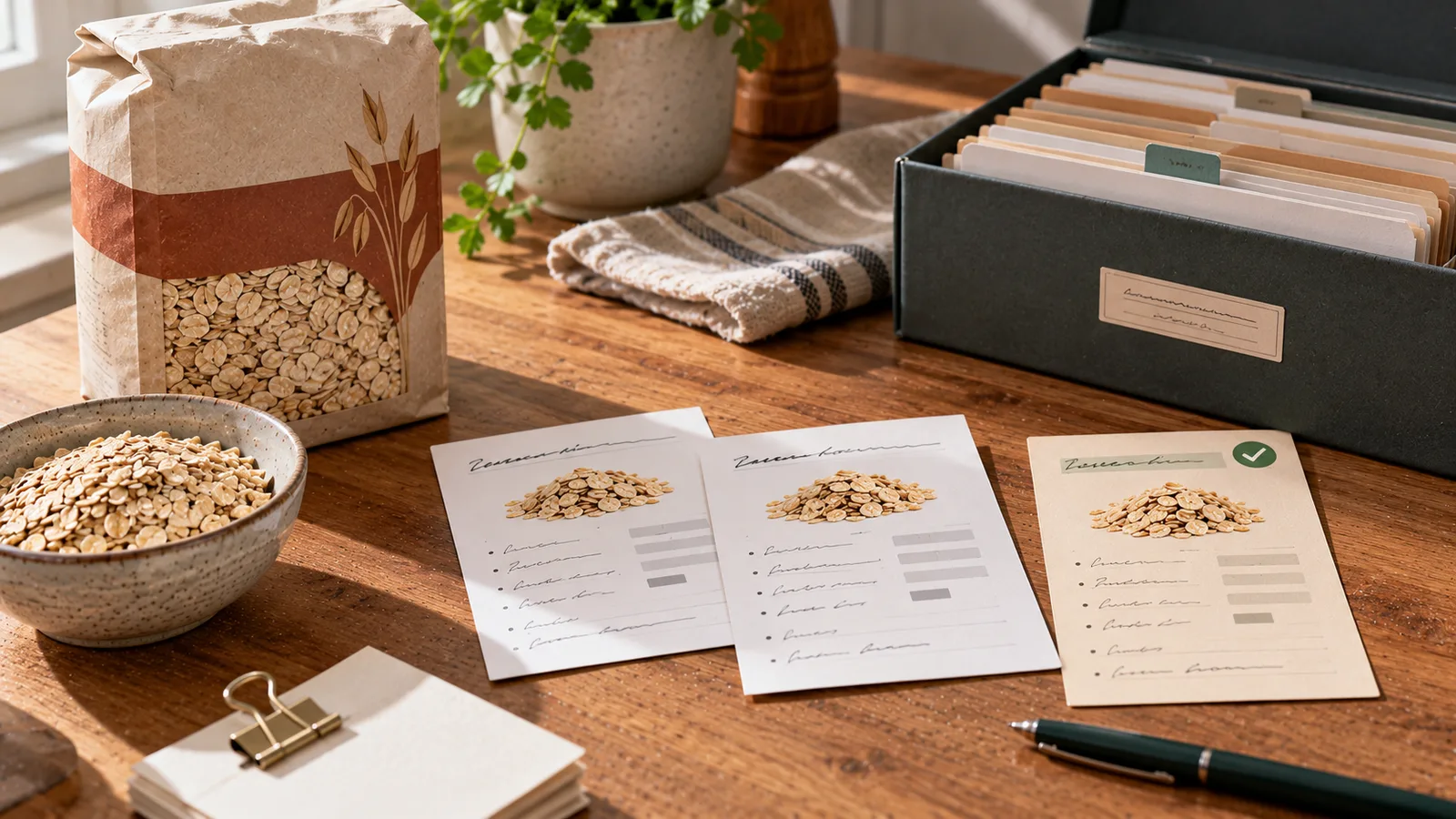
Custom foods make nutrition tracking more flexible. You can save a homemade recipe, a product missing from the database or a food with nutrition values taken directly from its packaging.
Over time, however, your personal food library may accumulate duplicates.
You might create the same product twice, save an updated version under a different name or accidentally import an item that already exists.
Duplicate foods are not necessarily dangerous, but they can make searching slower and increase the chance of choosing an outdated or inaccurate entry.
The goal is to keep one reliable entry for each genuinely distinct food while preserving the integrity of your existing diary records.
What counts as a duplicate custom food?
A duplicate is an entry that represents the same food, preparation and nutrition reference as another entry.
For example:
| Entry A | Entry B | Likely relationship |
|---|---|---|
| Plain oats, 100 g | Oat flakes, 100 g | Possible duplicate |
| Milk 3.5%, 100 ml | Whole milk 3.5%, 100 ml | Possible duplicate |
| Homemade lentil soup | Lentil soup, my recipe | Possible duplicate |
| Dry rice, 100 g | Cooked rice, 100 g | Different foods for tracking purposes |
| Plain yoghurt 0% | Plain yoghurt 3.5% | Different nutrition profiles |
| Tuna in water | Tuna in oil | Different products |
Two entries with similar names are not automatically duplicates.
The important questions are whether they describe the same product, the same preparation state and the same reference quantity.
Why duplicate entries appear
Duplicates commonly arise when:
- You manually create a product that already exists in your library.
- You scan a barcode and later add the same product from a photograph.
- You save a recipe twice with slightly different names.
- You import data from another nutrition app.
- You edit a product by creating a new entry instead of updating the original.
- Multiple household members create separate versions of the same food.
- An app synchronises offline edits after a connection is restored.
- A product's packaging changes and you save the new label as another item.
Some duplicates are intentional.
For instance, you may want to preserve two versions of a recipe if the ingredients or cooking method changed significantly.
Step 1: Find likely duplicates
Start with your custom-food list rather than your entire food database.
Search for:
- Identical names.
- Similar names or spelling variations.
- The same barcode.
- The same brand and package size.
- Matching calories and macronutrients.
- Similar recipes with the same ingredients.
A practical review table might look like this:
| Food name | Reference | Calories | Protein | Last used |
|---|---|---|---|---|
| Oat flakes | 100 g | 372 kcal | 13 g | Yesterday |
| Rolled oats | 100 g | 372 kcal | 13 g | 3 months ago |
| Oats cooked in water | 100 g | 70 kcal | 2.5 g | Last week |
The first two entries may be duplicates.
The third is not directly comparable because its values refer to cooked food with added water.
Do not delete entries based on matching calories alone.
Step 2: Compare the reference quantity
Nutrition values only make sense when their reference quantities are clear.
Before deciding whether two entries are duplicates, check whether they use:
- 100 g.
- 100 ml.
- One serving.
- One package.
- One cooked portion.
- A user-defined household measure.
For example, 150 kcal per 100 g and 300 kcal per 200 g describe the same energy density.
To compare them, convert both to a common basis.
Calories per 100 g = calories per serving ÷ serving weight in grams × 100
If a custom entry contains 240 kcal per 80 g:
240 ÷ 80 × 100 = 300 kcal per 100 g.
Apply the same conversion to protein, fat and carbohydrates.
If the serving weight is missing, do not assume two entries are equivalent.
Step 3: Check whether the nutrition values really match
Compare the main fields side by side.
| Field | What to check |
|---|---|
| Calories | Same unit and reference amount |
| Protein | Grams per equivalent quantity |
| Fat | Grams per equivalent quantity |
| Carbohydrates | Same carbohydrate definition |
| Fibre | Included separately where available |
| Sodium or salt | Correct unit and conversion |
| Brand | Same manufacturer and product |
| Preparation | Raw, cooked, drained or prepared |
| Recipe ingredients | Same quantities and cooking yield |
Minor rounding differences may be normal.
A large difference deserves investigation.
For example, two entries named "chicken breast" might refer to raw meat and cooked meat.
Cooking changes water content and therefore nutrition values per 100 g.
They should not be merged without resolving that distinction.
Salt versus sodium
Some labels list salt, while other databases list sodium.
These are not interchangeable numbers.
As an approximate conversion:
Salt (g) = sodium (g) × 2.5
For example, 0.4 g sodium corresponds to approximately 1.0 g salt.
Keep the original unit clearly identified.
Step 4: Choose a primary entry
Once you have confirmed that two records represent the same food, decide which one should remain your main entry.
Prefer the record that has:
- A verified source, such as the product label.
- Correct reference quantities.
- Complete nutrition information.
- A clear and searchable name.
- The correct brand or recipe details.
- A reliable connection to past diary entries.
Do not automatically keep the newest entry.
The older record may be more accurate or may already be referenced by months of food diary data.
Example: choosing between two oat entries
Suppose you have:
Entry A
- Name: Oats.
- Reference: 100 g.
- Calories: 380 kcal.
- Protein: 12 g.
- Source: Unknown.
Entry B
- Name: Brand X rolled oats.
- Reference: 100 g.
- Calories: 372 kcal.
- Protein: 13 g.
- Source: Current package label.
If both are intended to represent Brand X rolled oats, Entry B has stronger supporting information.
However, before removing Entry A, check whether it is used in historical records and whether your app preserves those records independently.
Step 5: Decide whether to merge, archive or delete
Not every app supports the same data-management features.
The safest action depends on how the app stores diary entries.
| Action | Best use | Main caution |
|---|---|---|
| Merge | Two confirmed duplicates with compatible data | Historical references must remain valid |
| Archive | An old entry should no longer appear in searches | Archived data may still be needed for history |
| Rename | Entries are similar but not identical | Preserve meaningful differences |
| Delete | An unused, confirmed duplicate | Check whether deletion affects past logs |
| Keep both | Different preparations or formulations | Use clear names to avoid confusion |
If your app does not support merging, archiving the less reliable entry may be safer than deleting it.
If archiving is unavailable, consider renaming the older entry to make its status clear.
Step 6: Protect historical food diary records
This is the most important part of duplicate cleanup.
A food diary is a record of what was logged at a particular time.
Changing a custom food today should not silently rewrite the nutrition totals of meals recorded months ago.
There are two common data-storage approaches.
Approach A: Historical snapshot
When you log a food, the app stores the nutrition values and portion size used at that moment.
Example:
- Food: Homemade granola.
- Logged quantity: 60 g.
- Logged calories: 270 kcal.
- Date: 12 March.
If the granola recipe changes later, the March record remains 270 kcal.
This approach generally protects historical consistency.
Approach B: Live reference
The diary stores a reference to a food record, and nutrition totals may be calculated from the current version of that record.
If the food record changes, old diary totals could change too.
Deleting the referenced food could also cause a broken reference if the app does not handle deletion safely.
Before deleting or merging a custom food, determine whether your app stores historical snapshots or live references.
If you cannot determine this, export or back up your diary first and test with a low-risk entry.
Step 7: Test the result
After cleaning up one duplicate pair:
- Search for the food again.
- Confirm that the correct entry appears.
- Log a test portion.
- Check calories and macronutrients.
- Open an older day containing the food.
- Verify that historical totals have not changed unexpectedly.
- Confirm that recipes using the food still work.
Do not clean up hundreds of entries at once without checking the result.
A small test can reveal how the app handles references and deleted records.
What if two entries have different nutrition values?
First, determine why.
Possible explanations include:
- Different brands.
- A changed product formulation.
- Raw versus cooked values.
- Drained versus undrained weight.
- Different serving sizes.
- Missing ingredients in a recipe.
- Incorrect manual transcription.
- Rounding on packaging labels.
If the differences are legitimate, keep separate entries and make their names specific.
For example:
- Chickpeas, canned, drained.
- Chickpeas, cooked from dry.
- Chickpeas, roasted with oil.
These are not interchangeable tracking records.
If one entry is simply incorrect, correct or replace it according to the app's history-preservation behaviour.
Duplicate recipes need extra care
A custom recipe may contain references to multiple ingredient records.
Deleting a duplicate ingredient can therefore affect more than one food entry.
Before changing a recipe:
- Compare ingredient quantities.
- Check whether cooking yields differ.
- Confirm the number of servings.
- Check added oils, sauces and toppings.
- Review the recipe's total cooked weight if used for portion calculations.
Consider two lentil soups:
| Recipe | Main difference |
|---|---|
| Lentil soup A | 200 g dry lentils and 10 g oil |
| Lentil soup B | 200 g dry lentils and 40 g oil |
These are different recipes, even if both are called "Lentil soup".
The extra oil changes the nutrition values.
Rename them rather than merging them.
A naming system that prevents future duplicates
Clear names make a personal food library easier to maintain.
For packaged foods, use:
Brand + product + meaningful variant
Examples:
- Brand X Greek yoghurt, 2% fat.
- Brand Y tuna, in spring water.
- Brand Z oats, plain.
For homemade foods, use:
Dish + preparation detail
Examples:
- Lentil soup, homemade, version 1.
- Chicken curry, coconut milk.
- Overnight oats, banana and peanut butter.
For foods where preparation affects nutrition, include the state:
- Rice, dry.
- Rice, cooked in water.
- Chicken breast, raw.
- Chicken breast, roasted.
Avoid adding unnecessary words, but preserve the details that prevent confusion.
How to handle a product with a changed label
A manufacturer may change a recipe or the nutrition values printed on its packaging.
Before overwriting an old entry, consider whether the new version is meaningfully different.
If the values changed only because of minor label rounding, an update may be appropriate.
If the product formulation changed substantially, a new version may be more useful.
For example:
- Brand X cereal, original formulation.
- Brand X cereal, reformulated 2026.
This helps distinguish products that were genuinely different at the time they were consumed.
Do not use a new label to retroactively assume the old product had the same composition.
What to do when duplicates come from barcode scans
Barcode scanning is convenient, but it does not guarantee that every database record is accurate.
If scanning a barcode produces multiple entries:
- Check the product name and brand.
- Compare the package size.
- Compare the nutrition label with the database values.
- Prefer the entry matching the product you actually have.
- Correct a personal entry if your app permits it.
- Avoid creating another duplicate unless necessary.
A barcode identifies a product record, but data quality still depends on the source and maintenance of the database.
Offline syncing and accidental duplicates
Some apps allow users to create or edit foods without an internet connection.
When the connection returns, the app may synchronise changes with the server.
If the same food was created on two devices while offline, duplicate records can result.
For users, the safest approach is to review recently synchronised foods before deleting anything.
For app developers, useful safeguards include stable record identifiers, idempotent synchronisation and conflict handling.
Matching only by food name is insufficient because two different products can share a name.
Privacy and shared household libraries
If multiple people use a shared food library, duplicate cleanup can affect other users.
Before deleting a shared item, check whether someone else has saved it in a recipe or diary.
A sensible system distinguishes:
- Personal foods.
- Shared household foods.
- Public database foods.
- Archived records.
Users should be able to understand which entries they are editing and who may be affected.
A practical monthly cleanup routine
You do not need to review your entire food library every week.
A short monthly routine is usually more manageable:
- Sort custom foods by recent creation date.
- Search for similar names and barcodes.
- Compare likely duplicates using a common reference quantity.
- Verify nutrition values against the best available source.
- Archive or remove confirmed duplicates only when history is protected.
- Check one recent and one historical diary entry.
- Rename ambiguous foods.
Focus on entries you actually use.
An unused duplicate is often less urgent than an inaccurate food selected every day.
Checklist before deleting a custom food
Use this checklist for each candidate:
- [ ] The two records describe the same food and preparation.
- [ ] Serving sizes have been normalised.
- [ ] Calories and macronutrients have been compared.
- [ ] The preferred entry has a reliable source.
- [ ] Historical diary records are protected.
- [ ] Recipes and saved meals will not break.
- [ ] A backup or export is available if needed.
- [ ] The remaining entry has a clear name.
If you cannot confirm the history or recipe dependencies, archiving is generally the more cautious option.
Final takeaway
Duplicate custom foods are mainly a data-quality and organisation problem.
The safest process is to identify likely matches, compare equivalent quantities, verify nutrition values and select a reliable primary entry.
Then merge, archive or delete only after checking how the app handles historical diary records and recipe references.
A tidy food library is useful, but preserving accurate past nutrition records matters more than removing every duplicate.